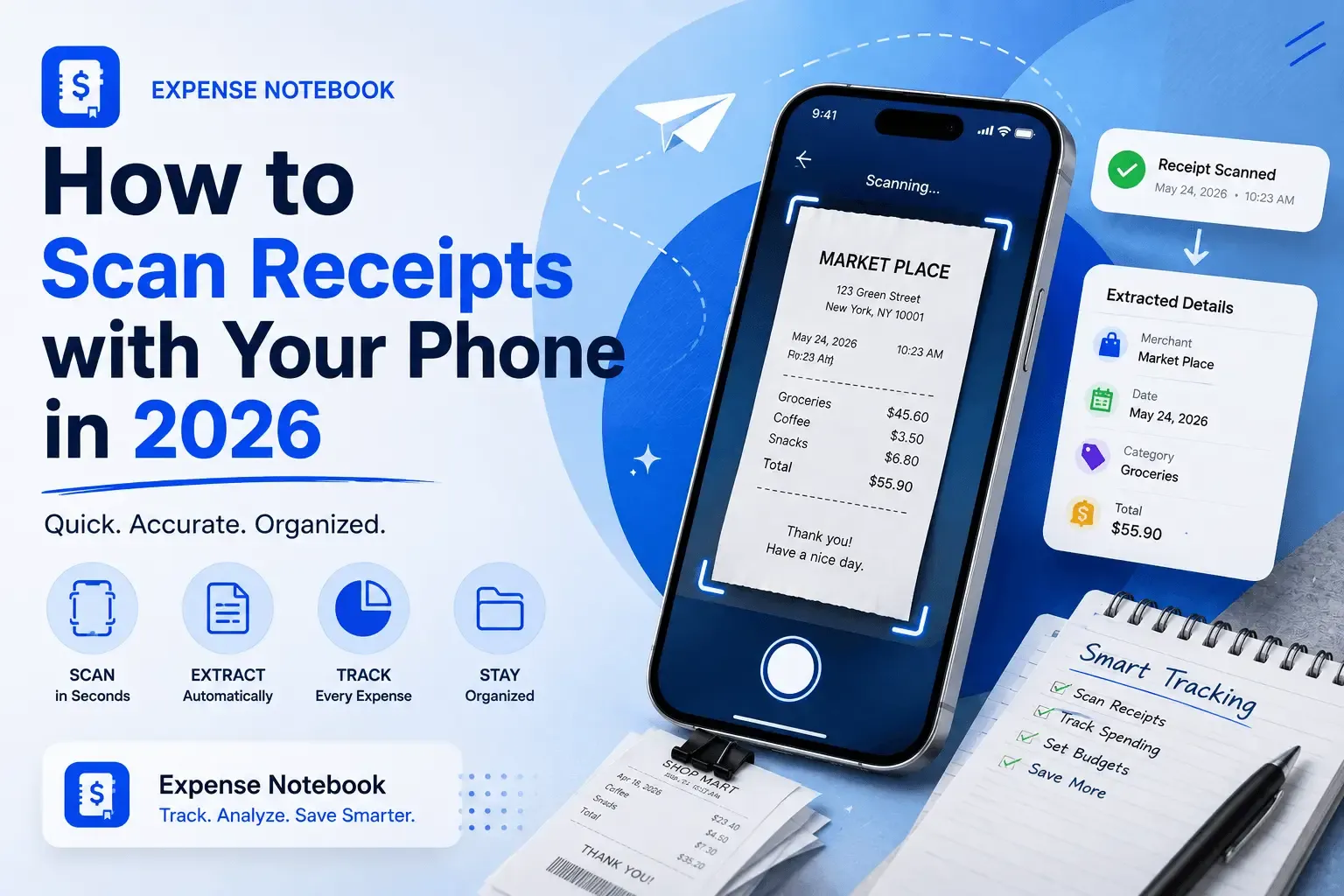
To scan receipts with your phone: download a free receipt scanner app like AI Expense Notebook (iOS and Android). Open the app, tap AI Magic Scan, and point your phone camera at any receipt. The AI reads the receipt using OCR technology and automatically extracts the merchant name, purchase date, total amount, tax, and spending category — in under 3 seconds. No typing required. The receipt is stored digitally, searchable, and permanently retrievable. The best AI receipt scanners achieve 99%+ accuracy on key fields including merchant, date, and total. Scanning works on paper receipts, crumpled thermal paper, faded receipts, and digital receipt screenshots.
Why Paper Receipts Are a Problem Worth Solving
The average household generates over 1,300 paper receipts per year — and throws away most of them without ever recording the spending. For anyone trying to track expenses, build a budget, prepare for tax season, or claim business deductions, that missing data is the difference between financial clarity and guesswork.
93% of retail receipts are printed on thermal paper, which contains BPA/BPS and fades completely within 12 months. If you are audited 3 years from now, your paper receipts will be blank. The IRS accepts digital scanned copies of receipts as valid documentation under Revenue Procedure 97-22, as long as they are legible and retrievable. Scanning immediately is the only way to preserve the record.
Beyond taxes, paper receipts are lost in bags, pockets, washed in laundry, and thrown away in moments of tidying up. The expense they represent is gone with them. A $46 restaurant meal forgotten because the receipt went through the washing machine is $46 of spending that never makes it into your budget.
Scanning receipts with your phone solves all of this in 3 seconds per receipt. This guide covers exactly how it works, how accurate modern AI scanning is, how to do it step by step with AI Expense Notebook, and the common mistakes that reduce scan quality — so you can get it right from day one.
How Phone Receipt Scanning Actually Works in 2026
Understanding the technology behind receipt scanning helps you use it better and troubleshoot when a scan doesn't go as expected. Modern phone receipt scanning is not a simple photograph — it's a multi-step AI pipeline that processes your image and converts it into structured financial data.
Step 1: Image Capture and Pre-Processing
When you point your phone camera at a receipt and tap scan, the app does several things before it reads any text. It detects the edges of the receipt, auto-crops the background, corrects for camera angle and perspective distortion, and adjusts brightness and contrast to make the text as readable as possible. This pre-processing step is why modern apps can read a crumpled receipt photographed at an angle on a dim restaurant table.
Step 2: OCR — Reading the Text
OCR stands for Optical Character Recognition. It's the technology that reads printed text from an image and converts it into machine-readable characters. Modern AI-based receipt OCR uses transformer-based neural network models trained specifically on receipt layouts — not generic text. This distinction matters.
Generic OCR tools like Google Vision typically achieve 95–98% accuracy on clean receipts but drop to the mid-80s on faded or crumpled thermal paper. Purpose-built AI receipt scanners achieve 99%+ accuracy on key fields (merchant name, date, total amount) even on challenging receipts. The best AI receipt scanners in 2026 achieve accuracy above human-level manual data entry on the same documents. (Source: Tabscanner, Suparse, Lido 2026 benchmarks)
Step 3: AI Data Extraction — Understanding Context, Not Just Characters
This is where modern AI receipt scanning separates from older OCR. After reading the text characters, a large language model processes the extracted text to understand what each piece of data means — not just what it says.
- "WHLFOODS MKT 2643" → understood as "Whole Foods Market" (not printed as such on receipt)
- "03/08/2026" and "March 8, 2026" and "08-03-26" → all correctly identified as the same date
- The total amount is correctly distinguished from subtotals, line item prices, and tip amounts
- "$1,550.00" is not misread as "$1,5S0.00" as older systems would
- "WLMART SUPERCENTER" → "Walmart" category: Groceries/Shopping (not Food & Dining)
Step 4: Automatic Categorization
Once the AI has extracted the data, it automatically assigns a spending category based on the merchant name, merchant type, and purchase content. A receipt from Costa Coffee becomes Food & Dining. A receipt from Shell becomes Transport/Fuel. A receipt from Boots becomes Healthcare/Personal Care. This automatic categorisation is what makes scanning genuinely faster than manual entry — not just the text reading, but the category decision too.
Step 5: Storage and Retrieval
The extracted data — merchant, date, total, tax, category, and an image of the original receipt — is stored digitally in the app. It's permanently retrievable, searchable by date or category, and exportable as a report. Unlike a paper receipt in a pocket, it doesn't fade, tear, wash, or disappear.
IRS/HMRC compliance note: The IRS accepts electronic storage of receipts as valid documentation under Revenue Procedure 97-22, provided the scanned image is legible and retrievable. HMRC in the UK similarly accepts digital records. Scanning your receipts with AI Expense Notebook creates a compliant digital record that satisfies tax authority requirements — paper receipts on thermal paper do not, as they fade within 12 months.
→ See also: How to Budget for a Vacation Without Going Into Debt
How to Scan Receipts with Your Phone: Step-by-Step with AI Expense Notebook
Step 1 Download AI Expense Notebook — Free on iOS and Android
Search 'AI Expense Notebook' on the App Store (iPhone and iPad) or Google Play (Android). The app is free to download. No bank account connection is required and no lengthy sign-up process blocks you from getting started. The app is ready to scan your first receipt within 60 seconds of installation.
- App Store link: available for iPhone and iPad (iOS 14+)
- Google Play link: available for all Android devices (Android 8+)
- No bank credentials required at any point
- Free tier includes full AI receipt scanning access
Step 2 Open the App and Tap the AI Magic Scan Button
On the AI Expense Notebook home screen, the AI Magic Scan button is the primary action — large, centred, and immediately visible. Tap it. The app opens your phone camera in receipt-scanning mode: the viewfinder shows a crop guide, and the camera optimises automatically for document scanning (higher contrast, edge detection active).
- The scan button is always one tap from the home screen — no navigating through menus
- Camera opens in document mode automatically — no need to adjust settings
- Works in portrait and landscape orientation
Step 3 Position Your Phone Over the Receipt
Hold your phone 20–30cm (8–12 inches) above the receipt, with the camera centred over the text. The app's edge detection highlights the receipt boundary in the viewfinder. For best results:
- Lay the receipt flat on a solid surface — don't hold it in the air
- Ensure the full receipt is visible in the frame, including the total at the bottom
- Use natural light or overhead lighting — avoid direct flash on glossy thermal paper as it causes glare
- For crumpled receipts: flatten as much as possible on the surface before scanning
- For faded receipts: use brighter lighting or increase your phone screen brightness to illuminate from below
Step 4 Tap to Capture — AI Extracts Data in Under 3 Seconds
Tap the shutter button. The app captures the image, pre-processes it, runs OCR, and extracts the structured data in under 3 seconds. You will see the extracted fields appear on screen: merchant name, purchase date, total amount, tax, and suggested spending category. The AI handles all of this automatically — no form-filling, no manual selection.
- Merchant name extracted and matched to known retailers
- Date parsed from any format (DD/MM/YYYY, MM-DD-YY, written date formats)
- Total distinguished from subtotals and line item prices
- Tax extracted separately where printed
- Category automatically assigned based on merchant type
Step 5 Review and Confirm — Edit Any Field if Needed
After extraction, AI Expense Notebook shows you the extracted data for review. Check that the merchant, date, amount, and category are correct. In the rare case the AI misreads a field — most likely on a heavily faded or damaged receipt — tap the field to edit it manually. Confirm and the expense is logged. The original receipt image is attached to the record.
- Review takes 2–3 seconds for a clean extraction
- Manual edit available for any field — tap and type
- Receipt image stored alongside extracted data — original preserved
- Add an optional note: 'Client lunch', 'Office supplies', 'Mum's birthday gift'
Step 6 The Receipt Is Logged, Categorised, and Permanently Stored
Once confirmed, the expense appears immediately in your spending log, budget category tracker, and monthly totals. The original receipt image is attached to the record and retrievable at any time. You can search by merchant, date range, or category. You can export all receipts in a date range as a PDF or CSV report — for personal review, freelance accounting, or tax preparation.
- Expense appears in real-time budget category bars immediately
- Receipt image stored and retrievable permanently
- Searchable by merchant name, date, amount, or category
- Exportable as PDF or CSV for accounting, tax preparation, or reimbursement claims
- No paper receipt needed after scanning — safe to discard the original
Download AI Expense Notebook free: App Store (iOS) · Google Play (Android)
What AI Expense Notebook Extracts From Every Receipt
Understanding exactly what data gets pulled from a scanned receipt helps you verify the extraction is complete and know what to check on review. Here is the full list of data points AI Expense Notebook extracts:
| Data Field Extracted | What It Looks Like on Receipt | Why It Matters |
| Merchant Name | "TESCO STORES 4219" → "Tesco" | Identifies where you spent — feeds automatic category assignment |
| Purchase Date | "08/07/2026", "Jul 8 26", "08-JUL-2026" | Accurately places spend in the right day, week, and month |
| Total Amount | Correctly reads total, not subtotal or line items | The number that hits your budget — must be precise |
| Tax Amount | VAT, GST, sales tax — extracted separately | Critical for business expense claims and tax deductions |
| Spending Category | Shell → Transport/Fuel; Pret → Food & Dining | Automatic — saves manual categorisation on every scan |
| Line Items* | Individual products and prices where printed clearly | Useful for grocery tracking and business itemisation |
| Payment Method | "VISA ****4521" or "CASH" where printed | Useful for reconciling card statements |
| Receipt Image | Full image stored alongside extracted data | IRS/HMRC compliant permanent record — paper can be discarded |
*Line-item extraction (individual products and prices) requires more advanced processing than total-only scanning. AI Expense Notebook extracts line items where they are clearly printed on the receipt. For supermarket receipts with many items, the total, category, merchant, and date are always extracted — full item-level extraction depends on receipt clarity.
Which Receipts Can AI Expense Notebook Scan?
One of the most common questions about receipt scanning is what types of receipts the AI can handle. The answer in 2026 is: virtually all of them. Here is the full breakdown by receipt type:
✅ Fully supported Standard Thermal Paper Receipts (Supermarkets, Restaurants, Petrol Stations)
The most common receipt type. AI Expense Notebook reads thermal paper receipts reliably at all legibility levels. Freshly printed thermal paper scans with 99%+ accuracy. Older or faded thermal paper (which fades 20–30% within 3–6 months) still scans accurately with good lighting. Tip: scan immediately after purchase rather than storing and scanning later.
✅ Fully supported Crumpled or Folded Receipts
The AI's image pre-processing flattens perspective distortion and fills in areas obscured by creases. Flatten the receipt against a solid surface before scanning and use good overhead lighting. Most crumpled receipts scan cleanly with this approach.
✅ Fully supported Long Receipts (Large Grocery Shops, Itemised Bills)
For receipts longer than your phone screen, scan in two or more overlapping sections. AI Expense Notebook stitches the sections together and extracts the full total from the final section. The key fields — total, tax, merchant, date — are always at the top and bottom of the receipt and are reliably captured.
✅ Fully supported Foreign Language Receipts
AI Expense Notebook's OCR handles receipts in any language. Merchant names, dates, and total amounts are extracted regardless of the language on the receipt. Particularly useful for international travel — scan receipts in local currency anywhere in the world and the app logs them accurately.
✅ Fully supported Digital Receipt Screenshots
Screenshots of email receipts, app receipts (Uber, Amazon, Deliveroo), and PDF receipts can be scanned directly from your phone screen or shared into the app. This makes AI Expense Notebook useful for tracking all spending, not just in-person physical purchases.
⚠️ Partially supported Handwritten Receipts (Markets, Small Traders)
Clear handwriting on lined paper scans reasonably well. Messy or abbreviated handwriting reduces AI accuracy significantly — the merchant might be readable but the total could be misread. For handwritten receipts from markets or small traders, scan and review carefully, or use manual entry for certainty.
⚠️ Partially supported Very Old or Heavily Faded Receipts (12+ months)
Thermal paper fades completely within 12 months — receipts older than a year may be partially or entirely unreadable. If you have old receipts to digitise, scan as soon as possible in bright light. For receipts where key fields (especially the total) are unreadable by AI, manual entry ensures accuracy.
8 Tips for Perfect Receipt Scans Every Time
Most scan failures come from the same few causes: poor lighting, a receipt that isn't flat, or the total being cut off at the bottom of the frame. These eight tips eliminate the most common problems:
Tip 1: Scan Immediately After Purchase
The most important habit in receipt scanning is timing. Thermal paper begins fading immediately after printing — a receipt scanned the same day it's issued captures perfectly legible data. A receipt scanned three months later may have faded by 20–30%. One scanned after 12 months may be partially blank. Make scanning the last thing you do before leaving a shop — scan it before you put the receipt in your pocket, not when you get home.
Tip 2: Lay the Receipt Flat on a Solid Surface
Holding a receipt in the air while scanning introduces micro-movements and perspective distortion that reduce OCR accuracy. Place the receipt flat on a table, counter, or any solid surface. Smooth out creases as much as possible. For long receipts, lay the full length flat and scan top-half then bottom-half separately.
Tip 3: Use Good Overhead Lighting — Avoid Direct Flash on Thermal Paper
Thermal paper is glossy and reflects light directly. A phone flash pointed directly at thermal paper creates a white glare patch that the AI reads as blank — which means the total, printed at the bottom, might be obscured. Use overhead room lighting or natural light instead. If you're in a dark restaurant, use a nearby light source rather than the flash.
Tip 4: Fill the Frame — But Include the Entire Receipt
Position the receipt so it fills as much of the camera frame as possible — this gives the OCR more resolution to work with. But ensure the full receipt is visible, especially the top (merchant name) and bottom (total and tax). Cutting off either end is the most common cause of incomplete extraction.
Tip 5: Wait for the Edge Detection Highlight Before Tapping
AI Expense Notebook's camera shows a highlighted outline around the detected receipt boundary. Wait for this highlight to appear and stabilise before tapping capture — it confirms the app has locked onto the receipt and the pre-processing is ready. Tapping before the highlight appears captures a raw image rather than an optimised one.
Tip 6: Use the Notes Field for Context That Isn't on the Receipt
The AI extracts what's printed. It can't know that the Costa Coffee receipt was a client meeting, or that the Amazon receipt is a birthday gift, or that the fuel receipt was for a business trip. Add a brief note immediately after confirming the scan: 'Client coffee - M. Ahmed', 'Birthday gift - sister', 'Business travel - London'. These notes make the report far more useful at tax time.
Tip 7: For Very Long Receipts: Scan in Two Halves
Supermarket receipts and detailed restaurant bills can be too long to capture in a single frame at useful resolution. Scan the top half first (captures merchant name and date), then the bottom half (captures total and tax). The app extracts the key fields from each section. The total is always at the bottom — make sure the second scan captures it fully.
Tip 8: Scan Digital Receipts Directly — No Need to Print
For online purchases (Amazon, ASOS, Uber, Deliveroo, Apple, Google), you receive a digital receipt by email or in-app. Open the receipt on your screen and scan the screen directly with AI Expense Notebook, or take a screenshot and share it into the app. No printing required. Digital receipt images often scan cleaner than thermal paper because the text is crisp, high-contrast, and doesn't fade.
Who Should Be Scanning Receipts — And Why
Receipt scanning with AI Expense Notebook is useful across a wide range of situations and user types. Here is how different people use it and what they get from the habit:
✦ Personal Expense Tracking
For anyone tracking daily spending or following a budget, receipt scanning eliminates the recall problem — the 'I think I spent about £40 on food this week' that always turns out to be £65 when you check the statement. Scan every receipt immediately and your spending data is exact, categorised, and live. After 30 days, the Insights tab shows your real spending pattern with a precision that bank statements can't match.
Best for: Everyday users, budgeters, anyone saving toward a goal
✦ Freelancers and Self-Employed Professionals
Business expense claims require receipts. HMRC and the IRS both require documentation for deductible expenses — client lunches, travel, equipment, office supplies, professional subscriptions. Paper receipts fade within a year. A scanned record of every deductible expense, with a note indicating the business purpose, is permanently retrievable and legally compliant. At tax time, export the date-range report from AI Expense Notebook and hand it to your accountant — clean, organised, nothing missing.
Best for: Freelancers, sole traders, self-employed professionals, contractors
✦ Travelers
Travel produces receipts in multiple currencies, foreign languages, and unfamiliar formats. Paper receipts get wet, crumpled, or lost in bags. Scanning every travel receipt immediately — hotels, restaurants, transport, taxis, activities — builds a complete trip expense record automatically. AI Expense Notebook's multi-currency support means a Tokyo restaurant receipt is logged in yen and tracked against your travel budget accurately.
Best for: International traveler, expats, business travellers
✦ Students
Students often operate on tight budgets with a mix of card and cash spending. Scanning receipts for dining hall meals, textbooks, stationery, and shopping gives an accurate picture of where the monthly allowance actually goes — which is almost always different from what the student estimates. Free tier in AI Expense Notebook covers everything a student needs.
Best for: College and university students, young adults on fixed budgets
✦ Small Business Owners
Keeping personal and business expenses separated requires clear records from day one. Scanning every business receipt into a dedicated category in AI Expense Notebook creates a clean audit trail. Staff receipts can be photographed and submitted digitally rather than physically collected and filed. Monthly export reports provide the documentation needed for bookkeeping.
Best for: Small business owners, retail operators, service businesses
→ See also: Mint Shut Down — Here's the Best Alternative in 2026
Using Receipt Scanning for Tax Season — What You Need to Know
Tax season is the most painful time to discover you haven't been tracking receipts. Whether you're filing personal taxes with some deductible expenses, or running a self-employed business where receipts are the foundation of your tax return, the rules are the same: documentation is required, and paper receipts are not a reliable form of it.
What Tax Authorities Accept for Digital Receipts
✓ IRS (USA): Electronic records including scanned receipt images are acceptable under Revenue Procedure 97-22, provided the system accurately indexes, stores, preserves, retrieves, and reproduces the records
✓ HMRC (UK): Digital records of business expenses are acceptable. HMRC's Making Tax Digital programme actively encourages digital record-keeping over paper
✓ ATO (Australia): Digital copies of receipts are accepted as evidence for tax deductions, provided they are a true and clear copy of the original
✓ CRA (Canada): Electronic copies of receipts and invoices are acceptable for income tax purposes under CRA guidelines
What Your Receipt Scan Needs to Show for Tax Purposes
→ Merchant/supplier name — clearly readable
→ Date of purchase — exact date, not approximate
→ Total amount paid — including any tax paid
→ Description of goods or services — either from the receipt or your note
→ Business purpose — added as a note in AI Expense Notebook ('client lunch', 'office printer')
The Tax-Season Receipt Scanning Workflow
If you scan receipts throughout the year with AI Expense Notebook, tax season becomes a reporting exercise rather than a rescue mission. Here is the full workflow:
- Throughout the year: scan every potentially deductible receipt immediately. Add a note with the business purpose
- Monthly: export AI Expense Notebook's monthly report and save as PDF — creates a dated record of all scanned expenses
- At tax season: filter AI Expense Notebook by business-related categories. Export the full year's business expense report
- Hand to your accountant: clean CSV or PDF with merchant, date, amount, category, and business purpose note — nothing missing
Pro tip for freelancers: Create a dedicated category in AI Expense Notebook called 'Business Expenses' and assign every work-related receipt to it throughout the year. At tax time, filter by this category and export — every deductible expense is documented, dated, and categorised. Your accountant will thank you.
Frequently Asked Questions
- How do I scan receipts with my phone?
To scan receipts with your phone: download AI Expense Notebook free from the App Store (iOS) or Google Play (Android). Open the app and tap AI Magic Scan. Point your phone camera at any receipt, flat on a surface with good lighting. The AI reads the receipt and extracts merchant name, date, total, tax, and category automatically in under 3 seconds. Review the extraction, confirm, and the expense is logged digitally. No typing required.
2. What is the best free receipt scanner app in 2026?
The best free receipt scanner app for personal use in 2026 is AI Expense Notebook, available on iOS and Android. It uses AI to scan receipts in under 3 seconds, automatically extracting merchant, date, total, tax, and spending category. The free tier includes full receipt scanning, manual entry, budget planner, savings goals, and visual insights. No bank account connection required. User data is never sold.
3. Can I scan receipts on my iPhone for expenses?
Yes. AI Expense Notebook is available on iPhone (and iPad) from the App Store. It uses AI Magic Scan to read any receipt in under 3 seconds — extracting merchant name, date, total, tax, and category automatically. The app works on all iPhones running iOS 14 and above. No bank account connection required. Download free from the App Store.
4. How accurate is AI receipt scanning?
The best AI receipt scanners in 2026 achieve 99%+ accuracy on key fields (merchant name, date, total amount) for clean receipts. Purpose-built AI systems outperform human-level manual data entry accuracy on the same documents. Accuracy drops on heavily faded thermal paper (12+ months old) or very poor lighting conditions. AI Expense Notebook allows you to review and manually edit any extracted field if the AI misreads it.
5. Is it legal to scan receipts instead of keeping paper ones?
Yes. The IRS (USA) accepts digital scanned receipts under Revenue Procedure 97-22. HMRC (UK) accepts digital records for business expenses. The ATO (Australia) and CRA (Canada) also accept digital copies. The scanned image must be legible and retrievable. AI Expense Notebook stores the original receipt image permanently alongside extracted data — creating a legally compliant digital record. Thermal paper fades within 12 months; digital records don't.
6. Can I scan foreign currency receipts?
Yes. AI Expense Notebook supports multi-currency receipt scanning. When you scan a receipt in a foreign currency — euros, yen, dirhams, pesos — the app logs the amount in the local currency accurately. Multi-currency support makes AI Expense Notebook ideal for international travel, expats, and freelancers working with foreign clients. Your full spending history is viewable and exportable with amounts in their original currencies.
7. What happens if the AI misreads part of my receipt?
After AI Expense Notebook extracts data from your receipt, it shows you the result for review before saving. If any field is incorrect — most likely on a faded or damaged receipt — tap the field to edit it manually. The AI reads correctly on the vast majority of receipts. For very faded or damaged receipts where the total is unreadable, use the manual entry option to ensure accuracy.
8. Can I scan receipts for tax purposes?
Yes. Scanning receipts with AI Expense Notebook creates a tax-compliant digital record for each expense — merchant name, date, total amount, tax, category, and a business purpose note. The IRS, HMRC, ATO, and CRA all accept digital scanned receipts as valid documentation. Export AI Expense Notebook's monthly or yearly report as PDF or CSV for your accountant. This is more reliable than paper receipts, which fade within 12 months.
9. How do I scan a receipt that is faded?
For faded receipts: lay the receipt flat on a white surface to maximise contrast. Use the brightest available overhead light — do not use direct flash as it creates glare on thermal paper. Hold your phone camera close to the receipt (15–20cm) and let the focus lock before capturing. If the total is still too faded to read by AI, use manual entry in AI Expense Notebook and type the amount. The receipt image is still stored even for manual entries.
10. Does AI Expense Notebook work without internet for receipt scanning?
Manual entry in AI Expense Notebook works offline — you can log cash purchases and review existing expenses without an internet connection. AI receipt scanning requires a brief internet connection to send the image for processing and receive the extracted data back. In areas with intermittent connectivity, the app queues the scan and processes it when connection is restored. All stored data is accessible offline.
Start Scanning — Never Lose a Receipt Again
Every receipt you throw away unscanned is a gap in your spending record — a purchase that never makes it into your budget, never appears in your tax records, and never shows up in the patterns that tell you where your money actually goes.
AI Expense Notebook scans any receipt in under 3 seconds. Free on iPhone and Android. No bank account connection required. The next receipt you receive can be the last one you ever lose.
- AI Magic Scan — any receipt in under 3 seconds
- Extracts merchant, date, total, tax, and category automatically
- Works on thermal paper, crumpled receipts, foreign receipts, and digital screenshots
- Review and confirm extraction before saving — edit any field if needed
- Original receipt image stored permanently alongside extracted data
- IRS, HMRC, ATO, CRA compliant digital records
- Multi-currency support for international receipts
- Manual entry for cash purchases without receipts
- Exportable PDF and CSV reports for tax preparation
- No bank account connection required — fully private
- Free on iPhone (iOS 14+) and Android (8+)